
AI Features
FlowMind is an AI-native security workbench: the dedicated AI window provides multi-provider chat and tool calling across traffic capture, replay, fuzzing, scanning, and reporting. Actions run deterministically in the Rust runtime.
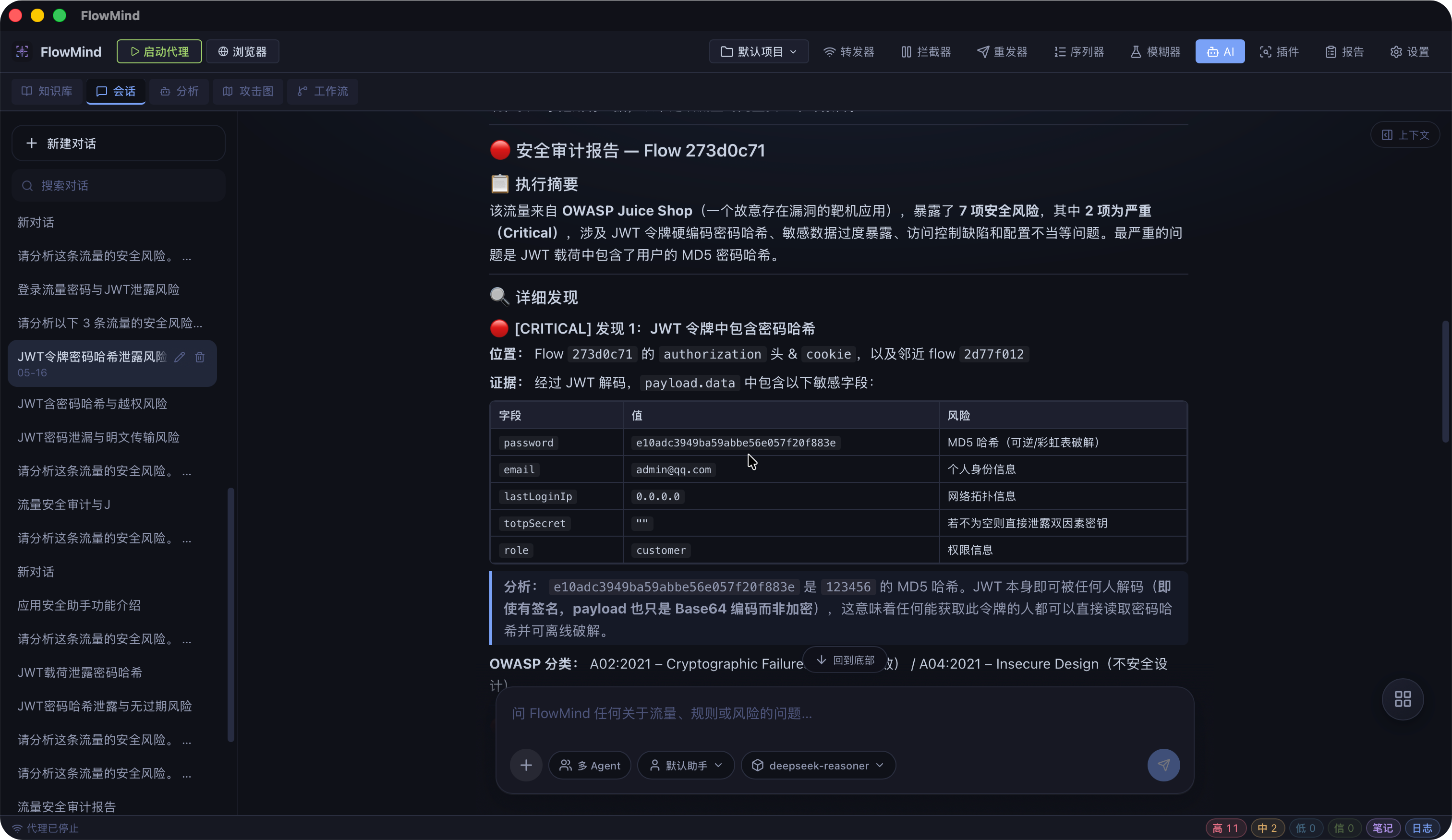
Overview
| Feature | Description |
|---|---|
| AI chat | Multi-provider, streaming; attach flow context |
| Tool calling | Query flows/findings; drive replay, fuzz, scans |
| MCP | Connect external MCP servers |
| Skills | SKILL.md capability packs |
| Smart replay | Session/token handling, diff analysis, optional findings |
| Smart fuzz | Endpoint analysis, strategy hints, payloads (execution needs approval) |
| Engram memory | Cross-session recall and compressed summaries (in AI settings) |
Changes (2026-09-29)
Knowledge base / RAG, legacy memory UI, Agent analysis panels, and Attack Map were removed. The current path is chat + tools + Skills + Engram.
Open the AI window
Click AI in the main title bar to open a second window:
| View | Purpose |
|---|---|
| Chat | Sessions; attach flows; switch roles/models |
| Settings | Model, providers, MCP, Engram, dynamic tools, agents, skills, advanced |
Also:
- Context preview — token budget and system prompt composition
- Run trace — reasoning, tool calls, system events
- Approval cards — one pending tool action at a time
Configure AI under AI window → Settings. Main Settings covers general, proxy, browser, certificates, and about only.
Configure models
- AI window → Settings → Model & chat — active provider and model
- Provider — API key, base URL, model list
- Optionally MCP Servers, Skills, Engram
- Save settings
See Settings for field details.
Send a flow to AI
- Select a request in the forwarder
- Right-click → Send to AI
- Continue the conversation with flow context attached
Tool calling
The assistant can call built-in capabilities (traffic, findings, token decode, scans, etc.) without copy-paste. Availability depends on Skill, role, and tool policy—see the UI.
Smart replay & fuzz
Smart replay keeps auth context, sends real requests through the proxy, and compares responses.
Smart fuzz suggests strategies and payloads; starting a fuzz job usually requires confirmation or using the Fuzzer page.
TIP
Replay session tokens are in-memory by default and are lost after restart.
Policy & scope
| Mechanism | Role |
|---|---|
| Tool permissions | Allow / ask / deny with approval cards |
| Project scope | Active actions must target hosts in the project proxy include/exclude rules |
Configure scope under Project settings → Proxy & limits. Out-of-scope calls are denied with a clear message.
Best practices
- Orient the model on the target first
- Combine plugin scans with replay/fuzz validation
- Watch context budget; start a new session when needed
- Export results via Reports
FAQ
Does smart fuzz run automatically?
Analysis can be AI-driven; execution typically needs approval or manual runs in Fuzzer.
Where did knowledge base / Attack Map go?
Removed on 2026-09-29. Use the chat tool chain and Engram instead.